
This guide helps you carry out basic software diagnostics when your GivEnergy system behaves unexpectedly for example: unusual charging or discharging, schedules not working as intended, or if the battery is paused. These checks help eliminate common causes and prepare useful information for your installer or GivEnergy Support.
Before You Start
- Temporarily disable any external control systems:
- Energy supplier integrations
- Home Assistant or other third-party optimisers
- You will need your GivEnergy Portal login (same credentials as the app).
Step 1 – Reset Charge/Discharge Schedules to Default
Resetting schedules helps rule out conflicting timings or legacy settings.
- Open a web browser and go to givenergy.cloud.
- Sign in using your usual app credentials.
- On the left menu, select My Inverter and expand the card.
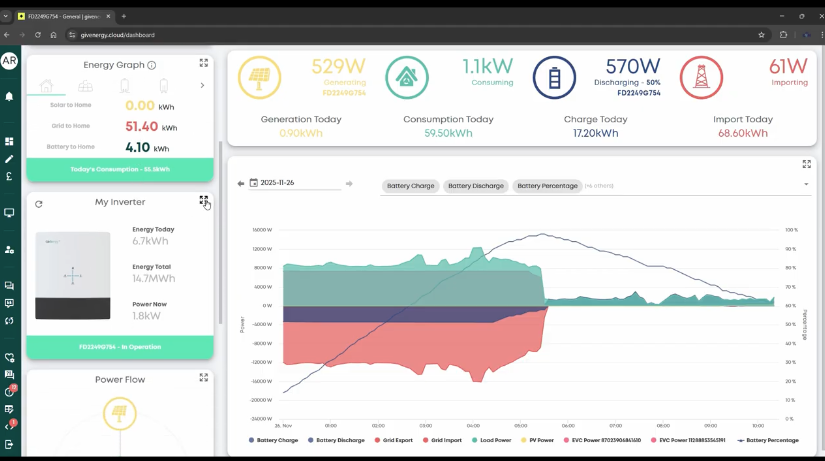
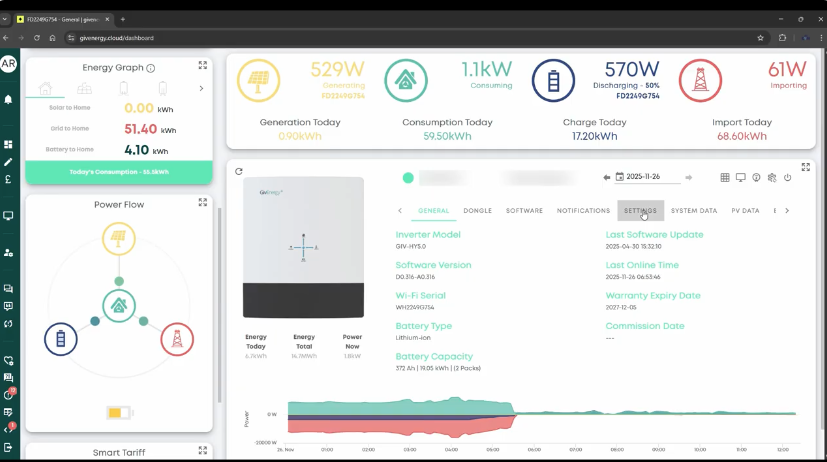
- Open the settings tab
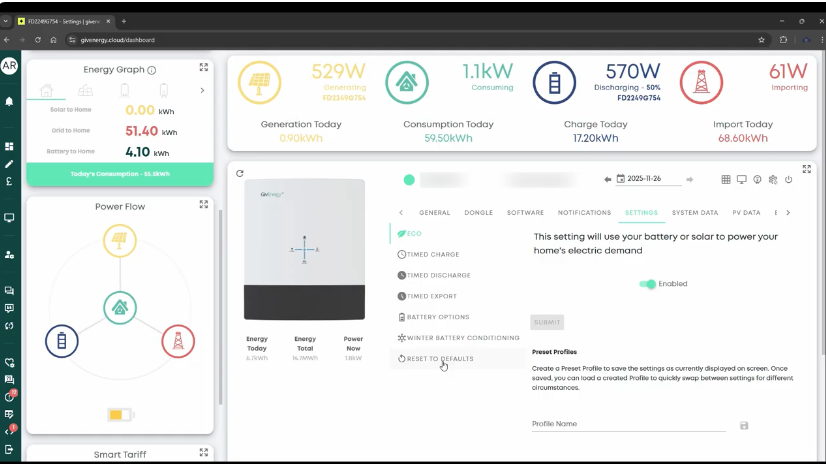
- Scroll to find Reset settings to default beneath Time Charge/Time Discharge
- Click Reset settings to default, then click Submit.
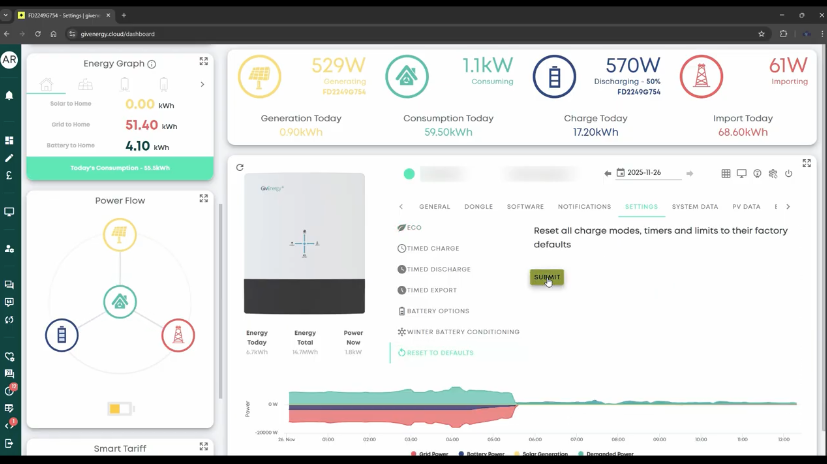
This clears all scheduled charge/discharge slots so you can test the system without conflicting settings.
Step 2 – Verify the Battery Isn’t Paused
- On the inverter card, click the right-hand Settings cog.
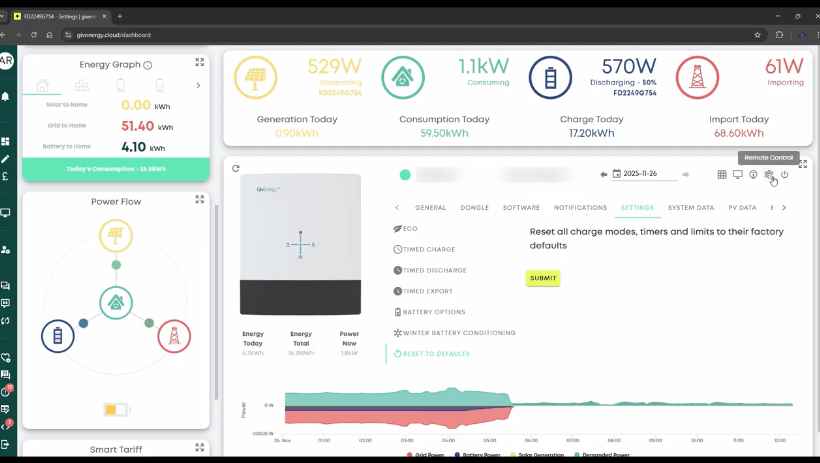
- Select Remote Control.
- At the top of the page, click Battery.
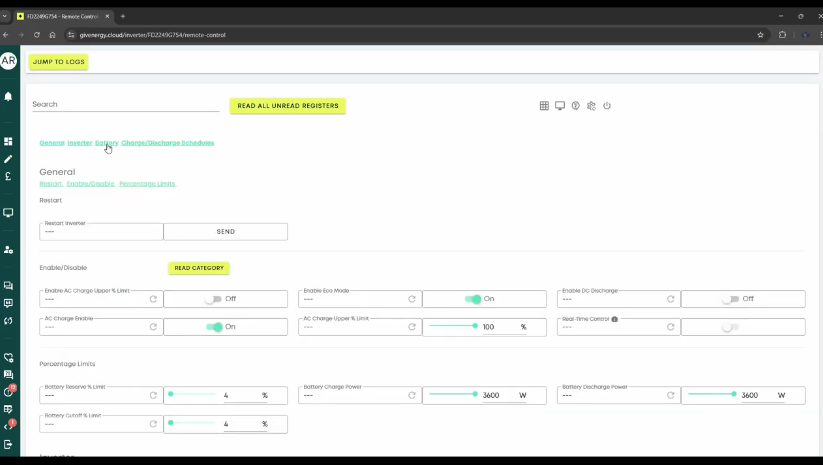 Note: This may not appear for Generation 1 batteries
 - Find Pause Battery.
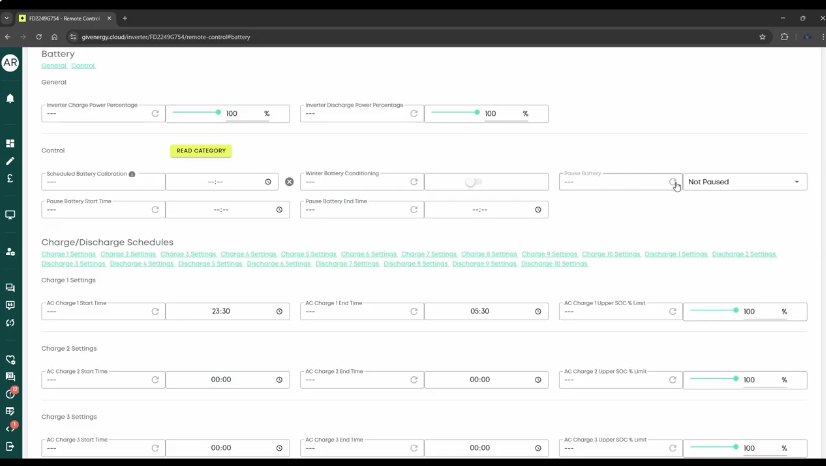
- Click the circular Refresh icon to fetch the current setting.
Expected result: It should show Not paused.
If it does not:
- Use the dropdown to select Not Paused.
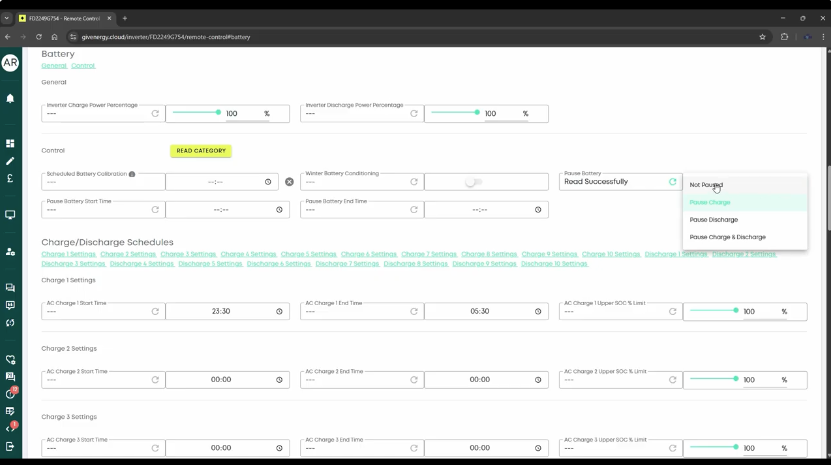
- Click the triangle submit icon to apply.
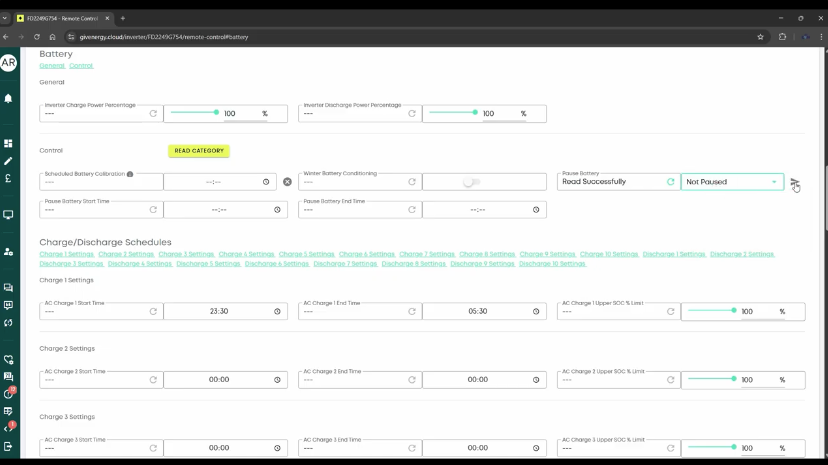
- Wait 10-15 seconds.
- Click Refresh again to confirm it remains Not paused.
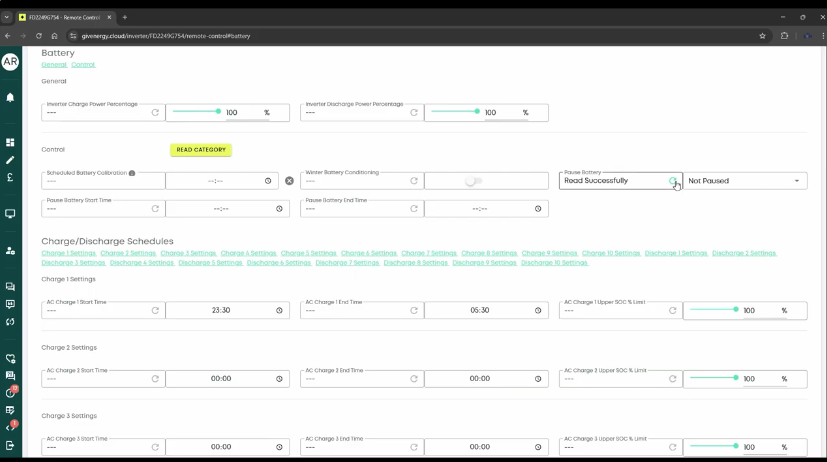
Step 3 – Check Logs for Plain-Text Errors
- At the top of the Remote Control page, click Jump to logs.
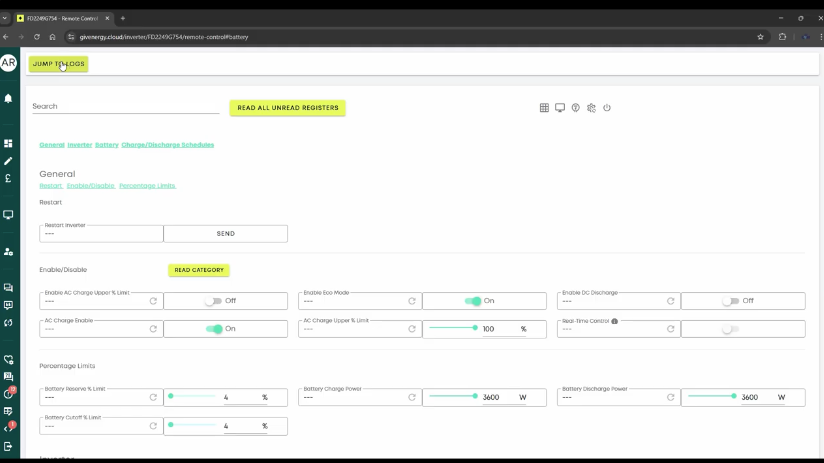
- Change the time window from 24 hours to a longer period such as 1 month.
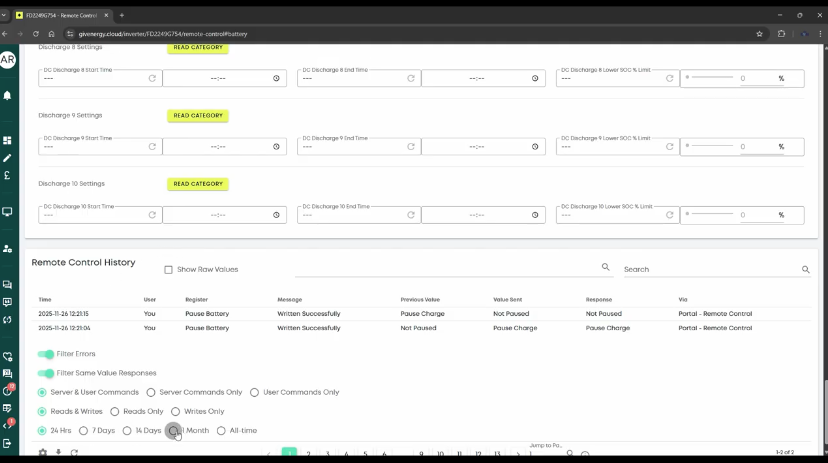
- Scan for clear text messages indicating issues (e.g., “Battery voltage is low”).
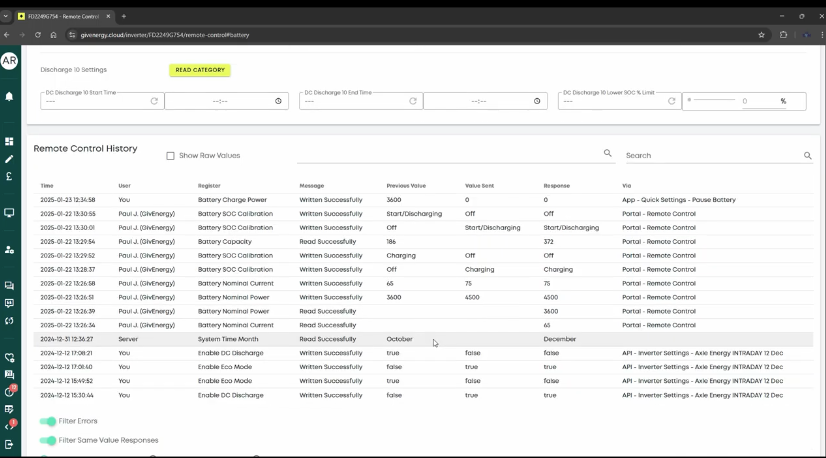
- Record any messages including exact text, date, and time.
Step 4 – Retest System Behaviour
- With schedules reset and the battery confirmed as Not paused, observe whether the system returns to normal behaviour.
- If behaviour stabilises, re-enter your preferred charge/discharge times in the Portal Settings tab or via the app.
When to Escalate
If the battery still behaves unexpectedly after:
- Resetting schedules,
- Confirming the battery is Not paused,
- Reviewing logs for errors,
and you have already completed any necessary hardware checks, contact your installer or GivEnergy Support. Include:
- Confirmation that schedules were reset
- Confirmation that the battery shows Not paused
- A short description of the problem
- Relevant log entries (exact text and timestamps)
Send this information to support@givenergy.co.uk.
Tips
- Think of this as “basic maintenance” before deeper troubleshooting.
- The Portal reset is more thorough than the App — always use the Portal for diagnostics.
- Re-enable external controls only after confirming your system works normally.
- Add external controls back one at a time to identify which one causes the issue.